Tutorial
Learn how to use WobblePic step by step.
1. Getting Started
Installation
- Go to the GitHub Releases page and download the latest installer.
- Run the installer and follow the on-screen instructions.
- Once installed, you can launch WobblePic from the desktop shortcut or Start Menu.
Opening Images
There are several ways to open images in WobblePic:
- Right-click an image file in Windows Explorer → "Open with" → WobblePic
- Drag and drop an image file or folder onto the WobblePic window
- Launch directly — WobblePic opens your Pictures folder by default
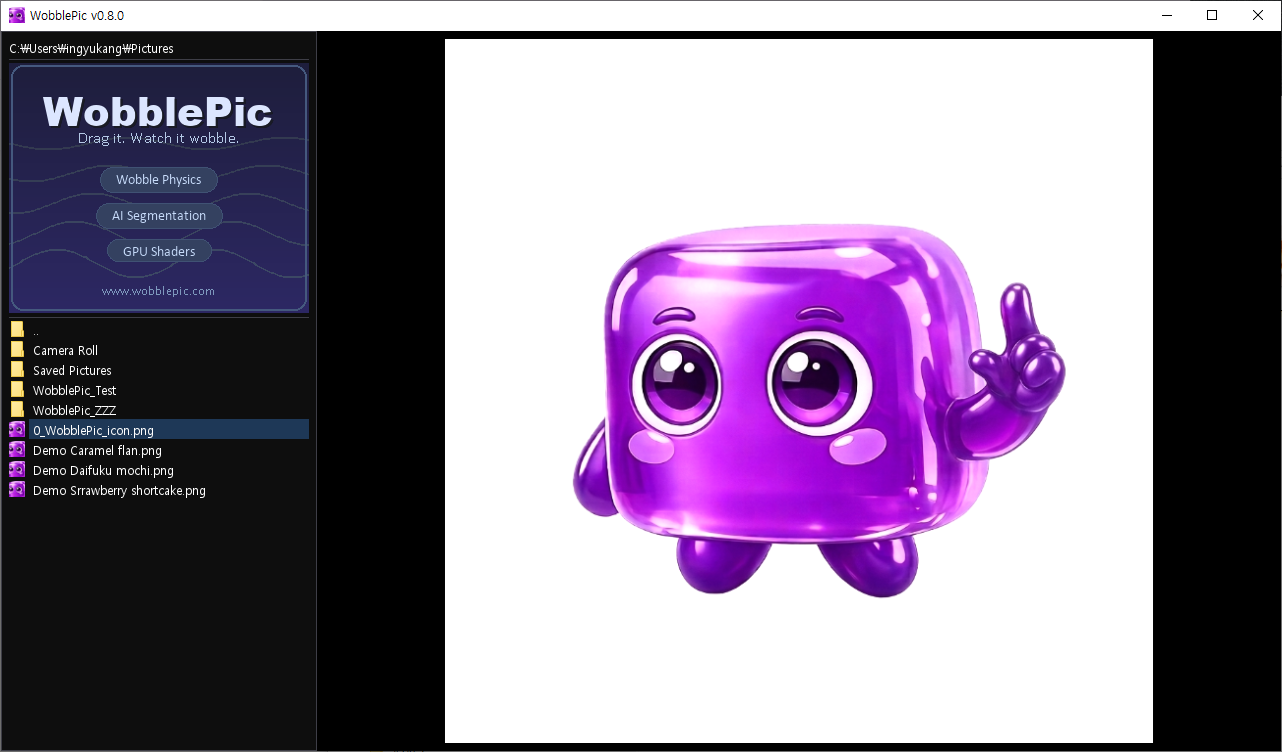
WobblePic main window with file explorer panel and image viewer
2. Basic Controls
Wobble!
Click and drag anywhere on the image. The surface stretches like skin, following your mouse. Release the mouse button and watch it bounce back with spring physics and inertia.
Drag the image and watch it wobble back with spring physics
Pin Deformation
While dragging, press Right-click or P to pin the deformation in place. The image stays stretched even after you release the mouse, and you can wobble other areas. A red dot marks each pin.
- Up to 4 pins at the same time
- Click a red dot to release that pin (bounces back)
- Click outside the mask to release all pins
- ESC — Release all pins and segmentation instantly
Settings Panel
Hover over the gear icon in the top-right of the image area to open the settings panel.
- Selection Range — Adjust how much area SAM2 selects on click
- Elasticity — Control how stretchy the image feels (0 = stiff, 100 = very stretchy)
- Bounce — Control how much it bounces back (0 = no bounce, 100 = very bouncy)
Changes apply instantly. Settings are saved automatically when you close the panel or exit the app.
Navigate Images
- Left/Right Arrow or Space/Backspace — Previous/Next image
- Adjacent images are preloaded in the background for instant switching.
Zoom & Pan
- Mouse Wheel or +/- keys — Zoom in/out (up to 10x, centered on mouse position)
- Space + Drag or Middle Mouse Drag — Pan the image
- Arrow keys while zoomed — Pan the image
Rotate & Delete
- R or Shift+L — Rotate 90° clockwise
- L or Shift+R — Rotate 90° counter-clockwise
- Delete — Move current image to Recycle Bin (with confirmation)
Image Info
Press Tab to toggle the image info overlay, which shows the filename, resolution, format, and file size.
3. AI Segmentation
WobblePic uses SAM2 (Segment Anything Model 2) to automatically detect objects in your image. Once segmented, only the selected area wobbles while the background stays fixed.
Select an Object
- Click on an object — SAM2 automatically detects and segments it (point prompt)
- Drag a rectangle around an object — Select by bounding box (box prompt)
The segmented area appears slightly brighter, while the background dims — so you can clearly see what's selected.
Click to segment an object, then drag to wobble only the selected area
Refine the Selection
- Shift + Click/Drag — Add to the current segment
- Alt + Click/Drag — Remove from the current segment
Move a Segment
Use Ctrl + Drag to move the selected segment around while the background stays fixed.
Segment Zoom
Use Shift + Mouse Wheel or Ctrl + Mouse Wheel to zoom only the segmented area while keeping the background fixed. Great for inspecting details!
How It Works Behind the Scenes
- SAM2 model loads in the background — you can start viewing images immediately
- Image encoding runs in a separate worker process (~5 seconds), so it never blocks your interaction
- Decoding (segmentation) is instant (~50ms) when you click
- If encoding isn't finished yet, the entire image area wobbles (no segmentation)
- Adjacent images are pre-encoded for seamless switching
4. File Explorer Panel
The left side panel shows a file explorer with folders and image files in the current directory.
- Click a folder — Navigate into that folder
- Click ".." — Go up to the parent directory
- Click an image file — Switch to that image (current selection is highlighted)
- Each item displays its Windows system icon for easy identification
Context Menu & Clipboard
- Right-click any item for a context menu — Open, Edit, Print, Cut, Copy, Rename, Delete
- F2 — Rename a file inline
- Ctrl+C / Ctrl+X / Ctrl+V — Copy, Cut, Paste (works with Windows Explorer)
- Ctrl+Shift+N — Create a new folder
You can also drag and drop image files or folders from Windows Explorer directly into the WobblePic window to open them instantly.
5. Keyboard Shortcuts
| Navigation | |
| Next image | Right Arrow / Space |
| Previous image | Left Arrow / Backspace |
| Zoom in | Mouse Wheel Up / + |
| Zoom out | Mouse Wheel Down / - |
| Pan image | Space + Drag / Middle Mouse Drag |
| Rotate clockwise | R / Shift+L |
| Rotate counter-clockwise | L / Shift+R |
| Toggle image info | Tab |
| Wobble & Pin | |
| Wobble | Left-click + Drag |
| Pin deformation | Right-click or P (while dragging) |
| Release all pins | Click outside mask / ESC |
| Segmentation | |
| Segment object (point) | Click (outside mask) |
| Segment object (box) | Drag (outside mask) |
| Add to segment | Shift + Click/Drag |
| Remove from segment | Alt + Click/Drag |
| Move segment | Ctrl + Drag |
| Zoom segment only | Shift + Mouse Wheel / Ctrl + Mouse Wheel |
| File Management | |
| Delete image | Delete |
| Copy image | Ctrl+C |
| Rename file | F2 |
| New folder | Ctrl+Shift+N |
| Open tutorial | F1 |